
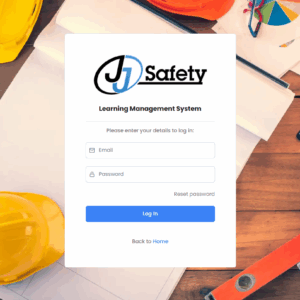
JJ Safety’s Learning Management System (LMS) is a central hub for equipping workers with the knowledge and training they need to work safely and get the job done.
Our LMS delivers a simple, intuitive experience that’s easy to navigate. Let’s dive into the core features of the JJ Safety LMS and get comfortable navigating the system.
First, we’ll focus on the management side, specifically what Safety Coordinators will see and how they can use the platform effectively.
Management View
When you first log in, you’ll arrive on the main dashboard. At the top of the page, you’ll see three primary options: Manage Employees, Company Data, and Manage Departments.
Under Manage Employees, you can view your full employee roster and use the search bar to quickly locate specific workers. To see more details for an employee, click the arrow (>) next to their name. This will expand a dropdown showing all courses assigned to that worker.
From this section, you can download completed certificates, reset finished courses, or unassign courses as needed. You can also update employee information, such as their name, email, department, and more, by selecting the Edit button.
Under Company Data, you can view all key information related to your organization, such as total assigned and completed courses, the number of employees, and how many courses are currently in progress. You can also see which workers are assigned to each course, including the assignment date, each worker’s most recent activity, and their current course status.
Lastly, under the Manage Departments tab, you can create custom departments that fit your organization’s structure, assign employees to their respective departments, and easily filter your roster by department for quicker navigation and oversight.
Safety Coordinators can also navigate to Course Management, which includes three key sections: Course List, Assign Course to User, and Course Blocks.
Additional Management View Options
The Course List section displays all courses available on the platform. Safety Coordinators can click on any course row to view a brief description and quickly understand what the course covers.
In the Assign Course to User section, the Safety Coordinator assigns courses to employees. Coordinators select English or Spanish, search for the desired course, and assign it either to an entire department through the Manage Departments tab or directly to individual users.
Finally, Safety Coordinators can assign Course Blocks using the Course Block tab. A course block is a collection of related trainings taken as a unit. Simply select the trainings you want to include, give the block a title, and assign it to the appropriate employee(s).
With the Safety Coordinator view covered, let’s move onto the worker’s view.
Worker's View
When a worker logs into the JJ Safety LMS, they will land on the My Courses page by default. Employees do not have any management permissions. Their view includes three tabs: My Courses, Certificates, and Learning Data.
Under the My Courses tab, employees can view all courses assigned to them and simply click on any course to begin.
The Certificates tab allows employees to view and print certificates for any courses they have successfully completed with a passing score.
Finally, the Learning Data tab offers a clear overview of course progress, including all assigned courses and related data.
Conclusion
The JJ Safety LMS is your hub for learning and gaining the knowledge you need to work safely and perform your job with confidence. For more information, please visit our website or give us a call at 866-627-3850.

Brooklyn Nice
Brooklyn Nice is a Content Development Specialist at JJ Safety, where she creates engaging, OSHA-focused safety content, training materials, and educational resources for workers and employers. She has earned her OSHA 10 Certification, providing her with a strong foundation in workplace safety principles and industry best practices.